Notenpult

Handbuch › Grundlagen

Suchen

Finde Stücke über Titel und Angaben – oder über den Text, der in deinen Noten steht.

Schnellsuche
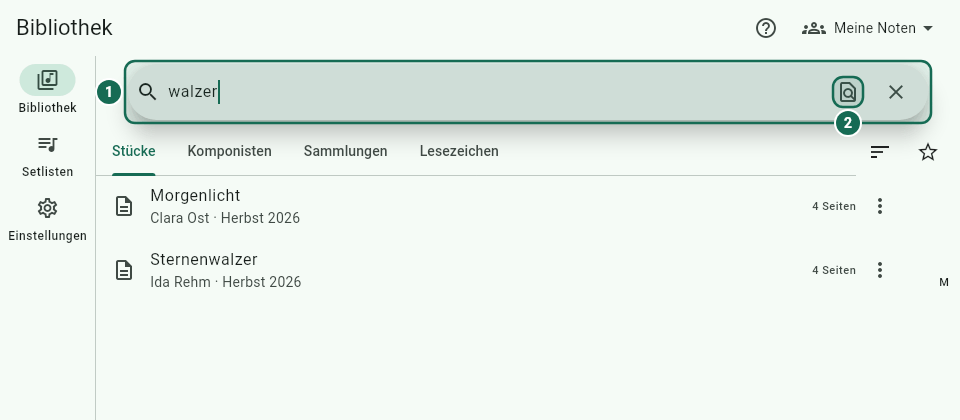
Suche nach „walzer“ in der Bibliothek
1 Suchfeld · 2 Volltextsuche im Notentext ein/aus

Tippe in der Bibliothek oben ins Suchfeld (Titel, Komponist, Sammlung suchen…). Die Liste filtert schon beim Tippen.

  • Alle Wörter müssen vorkommen, egal in welchem Feld: mozart sonate.
  • Wortteile genügen: hallel findet „Halleluja“.
  • Groß- und Kleinschreibung, Akzente und Umlaute sind egal: handel findet „Händel“, strasse findet „Straße“.
  • Das × im Suchfeld leert die Suche.

Die Suche wirkt auch in den Reitern Komponisten, Sammlungen usw. und lässt sich mit Sortierung und Mindestbewertung kombinieren, siehe Sortieren und Reiter.

Volltextsuche im Notentext

Mit der Volltextsuche findest du auch Wörter, die im Stück stehen: Liedtexte unter den Noten, Vortragsangaben, Titel in einem Liederbuch oder deine eigenen Text-Annotationen.

So geht's:

  1. Tippe rechts im Suchfeld auf den Knopf Im Notentext suchen (Seite mit Lupe). Er ist eingeschaltet, wenn er hervorgehoben ist.
  2. Gib deinen Suchbegriff ein.
  3. Tippe auf einen Seitentreffer: Das Stück öffnet sich direkt auf dieser Seite.

Die Ergebnisse kommen in zwei Teilen:

  • Titel und Angaben: Treffer wie bei der Schnellsuche.
  • Im Notentext: jede passende Seite mit Stück, Seitenzahl und einem Textausschnitt, z. B. „Seite 12: …und der Mond ist aufgegangen…“.

Treffer aus deinen Text-Annotationen erkennst du an einem eigenen Symbol (Text-Annotation). Alle Suchwörter müssen auf derselben Seite vorkommen.

Der Schalter gilt, bis du die App schließt; danach ist er wieder aus.

Was gefunden wird – und was nicht

  • PDFs mit Text: Notenpult liest den Text der PDFs nach dem Import im Hintergrund ein. Solange das läuft, steht über den Ergebnissen Notentext wird noch indiziert – weitere Treffer folgen. Bei großen Bibliotheken kann das beim ersten Mal eine Weile dauern; die App bleibt dabei bedienbar.
  • Gescannte PDFs und Fotos: enthalten nur Bilder, keinen Text. Notenpult hat keine Texterkennung, solche Seiten liefern also keine Treffer.
  • Text-Annotationen: werden nach dem Schließen der Notenansicht (bzw. beim nächsten Start) aktualisiert.
  • Songbooks: Hast du ein Liederbuch mit einem CSV-Index aufgeteilt, findet jedes Stück nur Treffer auf seinen eigenen Seiten, siehe Songbook aufteilen.
  • Text- und ChordPro-Songs: Ihr Liedtext wird von der Volltextsuche nicht durchsucht. Finde sie über Titel, Künstler und die anderen Angaben.

Findet die Volltextsuche nichts, erscheint Keine Treffer im Notentext.

Welche Felder durchsucht werden

Standardmäßig durchsucht die Schnellsuche Titel, Sortiertitel, Komponisten, Künstler, Arrangeure, Album, Genres, Sammlungen, Schlagwörter, Tonart und das eigene Feld. Notizen, Quelle oder Jahr sind zunächst nicht dabei.

Das änderst du unter Einstellungen › Bibliothek › Metadatenfelder mit dem Schalter Suchen pro Feld, siehe Metadatenfelder.

Suchindex neu aufbauen

Notenpult merkt sich für die Suche eine Übersicht aller Stücke. Sie entsteht immer aus deinen Dateien und lässt sich jederzeit neu erstellen.

Wenn Stücke fehlen oder Treffer nicht stimmen – z. B. nachdem du Dateien außerhalb der App kopiert hast –, wähle Einstellungen › Bibliothek › Suchindex neu aufbauen. Danach erscheint Suchindex neu aufgebaut. Deine Noten, Annotationen und Setlisten werden dabei nicht verändert.
Manual › Basics

Search

Find scores by title and details – or by the text written in your sheet music.

Quick search

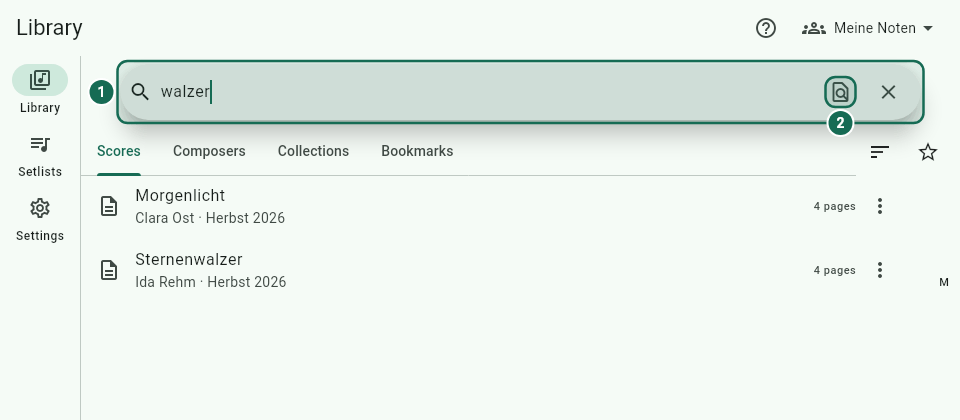
Searching the library for “walzer”
1 Search field · 2 Full-text search in the sheet music on/off

In the library, tap the search field at the top (Search title, composer, collection…). The list filters as you type.

  • All words must appear, in any field: mozart sonata.
  • Parts of words are enough: hallel finds "Hallelujah".
  • Upper and lower case, accents and umlauts don't matter: handel finds "Händel", strasse finds "Straße".
  • The × in the search field clears the search.

The search also works in the Composers, Collections etc. tabs and can be combined with Sort and Minimum rating, see Sorting and tabs.

Full-text search in the score text

Full-text search also finds words written inside a score: lyrics under the notes, performance directions, titles in a songbook or your own text annotations.

Here's how:

  1. Tap the Search in score text button on the right of the search field (page with magnifier). It is on when it is highlighted.
  2. Type your search term.
  3. Tap a page match: the score opens right on that page.

The results come in two parts:

  • Titles and details: matches as in the quick search.
  • In score text: every matching page with score, page number and a text snippet, e.g. "Page 12: …and the moon has risen…".

Matches from your text annotations have their own icon (Text annotation). All search words must appear on the same page.

The switch stays on until you close the app; after that it is off again.

What is found – and what isn't

  • PDFs with text: after import, Notenpult reads the text of your PDFs in the background. While this is running, Score text is still being indexed – more matches may follow appears above the results. For large libraries this can take a while the first time; you can keep using the app.
  • Scanned PDFs and photos: contain only pictures, no text. Notenpult has no text recognition, so such pages give no matches.
  • Text annotations: are updated after you close the score view (or at the next start).
  • Songbooks: if you split a songbook with a CSV index, each score only finds matches on its own pages, see Splitting a songbook.
  • Text and ChordPro songs: their lyrics are not searched by full-text search. Find them by title, artist and the other details.

If full-text search finds nothing, No matches in score text appears.

Which fields are searched

By default, the quick search looks at title, sort title, composers, artists, arrangers, album, genres, collections, tags, key and the custom field. Notes, source or year are not included at first.

Change this under Settings › Library › Metadata fields with the Search switch of each field, see Metadata fields.

Rebuilding the search index

For searching, Notenpult keeps an overview of all scores. It is always built from your files and can be recreated at any time.

If scores are missing or matches seem wrong – e.g. after you copied files outside the app – choose Settings › Library › Rebuild search index. Then Search index rebuilt appears. Your scores, annotations and setlists are not changed.