Ein Metronom pro Stück mit Einzählen, Tap-Tempo und Umblättern im Takt – dazu eine Stimmpfeife für den Anfangston.
Metronom
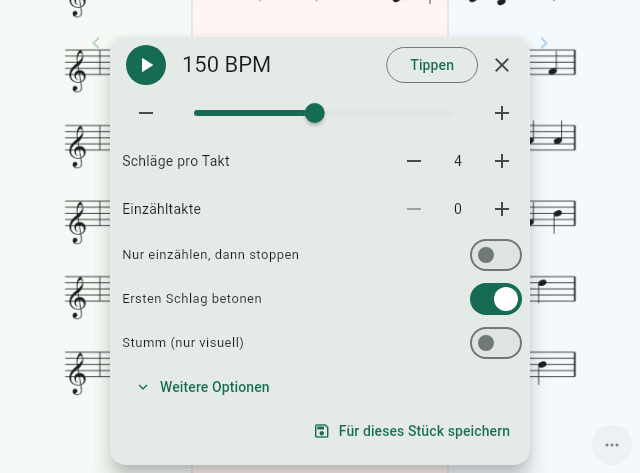
Öffne das Metronom im Viewer über Werkzeuge › Metronom (Bedienleiste: in die Mitte der Seite tippen). Es erscheint ein kleines Feld über den Noten.
Metronom starten / Metronom stoppen: der runde Knopf oben links.
Tempo: die BPM-Anzeige, daneben − und + für einzelne Schritte und ein Regler (20 bis 300 BPM).
Tippen: Tippe mehrmals im gewünschten Tempo auf Tippen (Tap-Tempo). Ab dem zweiten Tipp übernimmt Notenpult den Durchschnitt deiner letzten Tipps. Nach mehr als zwei Sekunden Pause beginnt die Messung neu.
Schläge pro Takt: 1 bis 16.
Einzähltakte: 0 bis 4 Takte Vorlauf vor dem eigentlichen Start.
Nur einzählen, dann stoppen: das Metronom zählt nur ein und verstummt dann – ideal als Einsatzhilfe für die Band.
Ersten Schlag betonen: der erste Schlag jedes Takts klingt anders.
Stumm (nur visuell): kein Klick, nur der visuelle Schlag – z. B. wenn ihr ohne Klick spielt, du aber das Tempo sehen willst.
Unter Weitere Optionen findest du zusätzlich das Umblättern im Takt, Klickklang, Visueller Schlag und den Klick-Kanal (siehe unten).
Pro Stück speichern
Öffnest du ein Stück, übernimmt das Metronom dessen gespeicherte Einstellungen. Gibt es keine, nimmt es Tempo und Taktart aus den Stückdaten (z. B. 3/4 → 3 Schläge, 6/8 → 6 Schläge). Was du im Feld änderst, gilt sofort. Dauerhaft für dieses Stück übernimmst du es mit Für dieses Stück speichern.
Bei Stücken anderer Gruppenmitglieder werden diese Einstellungen als deine persönliche Ergänzung gespeichert – das Stück des Eigentümers bleibt unverändert.
Klang und Kanal
Klickklang: Holzblock, Piepton oder Tick.
Klick-Kanal: Links, Beide oder Rechts. Mit Kopfhörer oder Audio-Interface hörst du den Klick so nur auf einer Seite, z. B. um auf der anderen Seite ein Playback zu hören. Eingebaute Mono-Lautsprecher spielen den Klick immer auf beiden Seiten.
Klickklang und Kanal sind Geräte-Einstellungen. Du findest sie auch unter Einstellungen › Audio & Metronom.
Soll ein Drumcomputer oder eine DAW das Tempo vorgeben, kann das Metronom einer MIDI-Clock folgen (siehe MIDI-Clock).
Umblättern im Takt
Das Metronom kann für dich umblättern – praktisch bei Stücken mit gleichmäßigem Tempo oder beim Üben ohne Pedal.
So geht's:
Öffne Werkzeuge › Metronom und tippe auf Weitere Optionen.
Stelle bei Umblättern nach Takten ein, nach wie vielen Takten jeweils umgeblättert wird (bis 64; aus schaltet es ab).
Hat eine Seite eine andere Länge, gehe zu dieser Seite und trage bei Schläge auf dieser Seite die Anzahl der Schläge ein. Für diese Seite gilt dann diese Zahl statt der Takte.
Tippe auf Für dieses Stück speichern. Die Schläge pro Seite werden erst damit übernommen.
Starte das Metronom.
Gezählt werden nur die gespielten Schläge, nicht die Einzähltakte. Blätterst du selbst um, beginnt die Zählung auf der neuen Seite von vorn.
Visueller Schlag
Während das Metronom läuft, zeigt Notenpult den Schlag auch optisch an. Wähle unter Weitere Optionen › Visueller Schlag:
LED-Reihe: eine Reihe Leuchtpunkte, einer pro Schlag.
Blinkender Kreis: ein Kreis, der im Takt aufleuchtet.
Leuchtender Bildschirmrand: der Rand des Bildschirms leuchtet im Takt auf – gut aus dem Augenwinkel zu sehen.
Der visuelle Schlag bleibt auch im Performance-Modus sichtbar und reagiert nie auf Berührungen. Zusammen mit Stumm (nur visuell) hast du ein lautloses Metronom auf der Bühne.
Stimmpfeife
Die Stimmpfeife spielt einen Ton – zum Stimmen oder für den Anfangston eines Chors.
Öffne im Viewer Werkzeuge › Stimmpfeife.
Tippe auf einen Ton (C3 bis H5, in drei Oktaven; C4 ist das eingestrichene c). Der Ton klingt, bis du ihn noch einmal antippst, einen anderen Ton wählst oder Stopp tippst. Der Klavierklang verklingt nach einigen Sekunden von selbst.
Mit dem Regler Kammerton A4 stellst du die Stimmung ein (430 bis 446 Hz). Diese Einstellung gibt es auch unter Einstellungen › Audio & Metronom.
Den Klang wählst du unter Einstellungen › Audio & Metronom › Klang der Stimmpfeife: Klavier (ab Werk), Chor „Aah“, Orgel oder Reiner Ton (Sinus). Alle Klänge erzeugt Notenpult selbst – ohne Aufnahmen und ohne Internet.
Den Anfangston eines Stücks – oder die Anfangstöne aller Chorstimmen als Akkord – kannst du auch auf einen Smart Button legen – dann reicht ein Tipp auf die Noten.
A metronome per score with count-in, tap tempo and page turns in time – plus a pitch pipe for the starting note.
Metronome
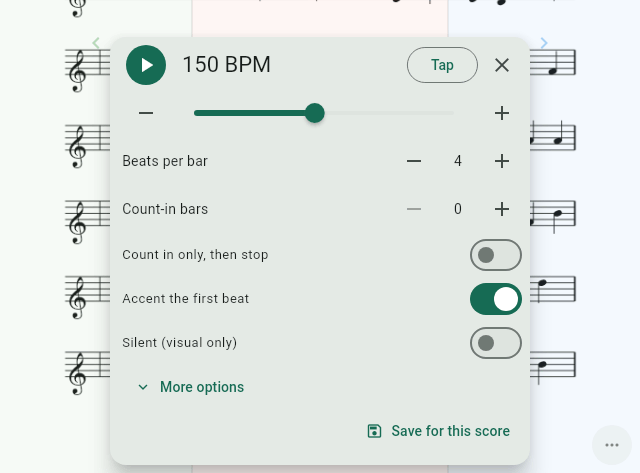
Open the metronome in the viewer via Tools › Metronome (control bar: tap the middle of the page). A small panel appears above the music.
Start metronome / Stop metronome: the round button at the top left.
Tempo: the BPM display, with − and + for single steps and a slider (20 to 300 BPM).
Tap: tap Tap several times at the tempo you want (tap tempo). From the second tap on, Notenpult uses the average of your last taps. After a pause of more than two seconds, measuring starts again.
Beats per bar: 1 to 16.
Count-in bars: 0 to 4 bars before the actual start.
Count in only, then stop: the metronome only counts in and then goes quiet – ideal as a cue for the band.
Accent the first beat: the first beat of each bar sounds different.
Silent (visual only): no click, only the visual beat – e.g. when you play without a click but want to see the tempo.
Under More options you also find page turns in time, Click sound, Visual beat and the click channel (see below).
Saving per score
When you open a score, the metronome takes over its saved settings. If there are none, it takes tempo and time signature from the score details (e.g. 3/4 → 3 beats, 6/8 → 6 beats). Whatever you change in the panel applies at once. To keep it for this score, use Save for this score.
On scores of other group members these settings are saved as your personal addition – the owner's score stays unchanged.
Sound and channel
Click sound: Wood block, Beep or Tick.
Click channel: Left, Both or Right. With headphones or an audio interface you then hear the click on one side only, e.g. to hear a backing track on the other side. Built-in mono speakers always play the click on both sides.
Click sound and channel are device settings. You also find them under Settings › Audio & metronome.
If a drum machine or DAW should set the tempo, the metronome can follow a MIDI clock (see MIDI clock).
Page turns in time
The metronome can turn pages for you – handy for pieces with a steady tempo or when practising without a pedal.
Here's how:
Open Tools › Metronome and tap More options.
Under Turn page after bars, set after how many bars the page turns (up to 64; off switches it off).
If a page has a different length, go to that page and enter the number of beats under Beats on this page. For this page that number then applies instead of the bars.
Tap Save for this score. The beats per page are only taken over with this.
Start the metronome.
Only played beats are counted, not the count-in bars. If you turn the page yourself, counting starts again on the new page.
Visual beat
While the metronome runs, Notenpult also shows the beat visually. Choose under More options › Visual beat:
LED row: a row of lights, one per beat.
Flashing circle: a circle that lights up in time.
Glowing screen edge: the edge of the screen lights up in time – easy to see from the corner of your eye.
The visual beat stays visible in performance mode too and never reacts to touches. Together with Silent (visual only) you have a silent metronome on stage.
Pitch pipe
The pitch pipe plays a note – for tuning or for the starting note of a choir.
In the viewer, open Tools › Pitch pipe.
Tap a note (C3 to B5, in three octaves; C4 is middle C). The note sounds until you tap it again, choose another note or tap Stop. The piano sound fades away by itself after a few seconds.
Set the tuning with the slider Reference A4 (430 to 446 Hz). This setting is also under Settings › Audio & metronome.
Choose the sound under Settings › Audio & metronome › Pitch pipe sound: Piano (default), Choir "aah", Organ or Pure tone (sine). Notenpult creates all sounds itself – no recordings, no internet.
You can also put the starting note of a score – or the starting notes of all choir parts as a chord – on a smart button – then a single tap on the music is enough.