Verbinde Keyboard, Pedal-Controller, Effektgerät oder Arranger mit Notenpult: umblättern per MIDI, Sounds beim Öffnen eines Stücks umschalten und Stücke per Programmwechsel laden.
MIDI einrichten
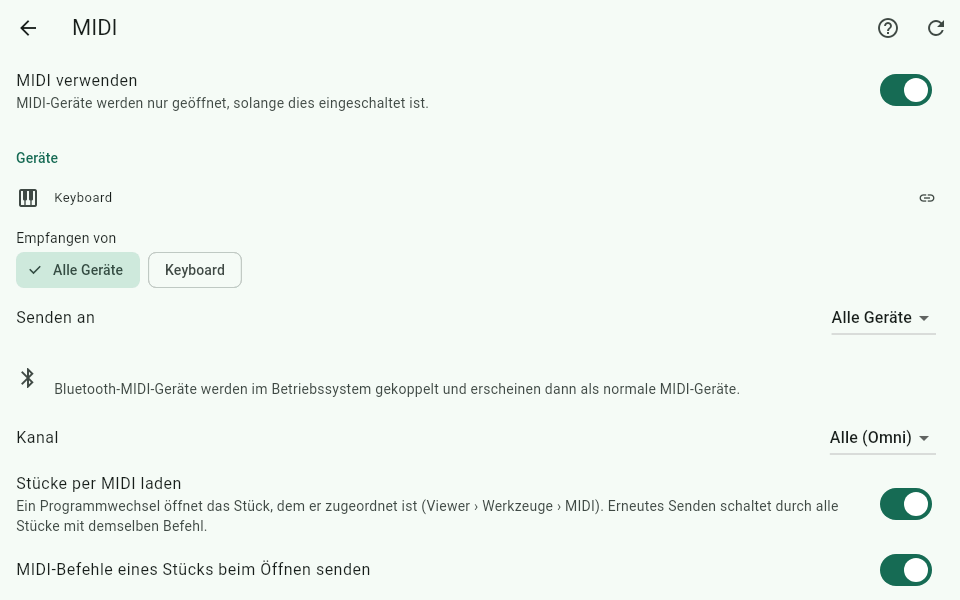
MIDI ist zunächst komplett ausgeschaltet. Notenpult greift erst auf MIDI-Geräte zu, wenn du es einschaltest.
So geht's:
Schließe dein MIDI-Gerät an – per USB-Kabel (auf Android-Tablets ggf. mit USB-OTG-Adapter) oder per Bluetooth (siehe Bluetooth-MIDI).
Öffne Einstellungen › MIDI.
Schalte MIDI verwenden ein. Im Browser fragt Chrome bzw. Edge jetzt, ob Notenpult MIDI-Geräte steuern darf – erlaube das.
Unter Geräte siehst du alle gefundenen Geräte. Ein Kettensymbol zeigt, ob das Gerät verbunden ist. Hast du ein Gerät erst nachträglich eingesteckt, tippe oben auf Erneut suchen.
Empfangen von: Lass Alle Geräte gewählt oder hake nur die Geräte an, auf die Notenpult hören soll.
Senden an: Wähle das Gerät, an das Notenpult Befehle schickt (z. B. dein Keyboard), oder Alle Geräte.
Kanal: Mit Alle (Omni) reagiert Notenpult auf alle 16 MIDI-Kanäle. Wählst du einen Kanal, werden Nachrichten auf anderen Kanälen ignoriert.
Über der Geräteliste zeigt Letzte Nachricht die zuletzt empfangene MIDI-Nachricht. So prüfst du schnell, ob dein Gerät überhaupt ankommt.
Gewählte Geräte bleiben in der Liste, auch wenn sie gerade ausgesteckt sind. Steckst du sie wieder ein, verbindet Notenpult sie automatisch.
Plattformen:
Windows und Android: USB-MIDI-Geräte werden direkt erkannt.
Browser (Chrome, Edge): MIDI funktioniert über die Web-MIDI-Schnittstelle des Browsers.
iPad (Safari): Safari unterstützt kein Web MIDI. Die MIDI-Einstellungen zeigen dann einen Hinweis. Auf dem iPad gibt es daher kein MIDI in Notenpult (siehe auch Safari).
MIDI-Aktionen anlernen
Mit MIDI-Aktionen steuerst du den Viewer über dein MIDI-Gerät – genau wie mit einem Bluetooth-Seitenwender. Klassisches Beispiel: Das Haltepedal deines Keyboards blättert um.
So geht's (Beispiel Haltepedal):
Öffne Einstellungen › MIDI und scrolle zu MIDI-Aktionen.
Tippe auf MIDI-Aktion hinzufügen. Notenpult wartet jetzt: Note spielen, Pedal treten oder Programmwechsel senden …
Tritt einmal das Haltepedal. Notenpult erkennt die Nachricht (beim Haltepedal Controller 64) samt Kanal und legt eine neue Zeile an.
Wähle darunter die Aktion, z. B. Nächste Seite.
Lege für ein zweites Pedal oder eine Taste auf die gleiche Weise Vorherige Seite an.
Anlernen kannst du:
Noten: eine bestimmte Taste auf dem Keyboard (z. B. die tiefste Taste, die du im Stück nicht brauchst).
Controller (CC), z. B. Halte-, Sostenuto- oder Schalterpedale und Fußschalter. Die Aktion wird einmal pro Tritt ausgelöst – beim Durchtreten, nicht beim Loslassen.
Programmwechsel, z. B. von einem MIDI-Fußcontroller.
Als Aktion steht dir alles zur Verfügung, was du auch auf Pedale legen kannst – z. B. Nächstes Stück / Vorheriges Stück der Setliste, Performance-Modus an/aus, Metronom starten/stoppen oder Audio abspielen/pausieren (siehe Pedal-Aktionen).
Tippe auf den Knopf mit der Nachricht (z. B. Controller 64 · Kanal 1), um sie neu anzulernen.
Mit dem Papierkorb löschst du eine MIDI-Aktion.
Kommt innerhalb von 30 Sekunden nichts an, bricht das Anlernen ab. Mit Abbrechen beendest du es selbst.
MIDI-Befehle pro Stück
Notenpult kann beim Öffnen eines Stücks automatisch MIDI-Befehle senden – z. B. den passenden Sound am Keyboard, ein Preset am Effektgerät oder ein Licht-Szenario.
So geht's:
Öffne das Stück im Viewer.
Tippe auf Werkzeuge › MIDI. Das Fenster MIDI für dieses Stück öffnet sich.
Tippe unter Beim Öffnen des Stücks senden auf Befehl hinzufügen.
Wähle die Art des Befehls und den Kanal und trage die Werte ein: Programmwechsel (Programm 0–127, optional Bank MSB und Bank LSB), Controller (CC) (Controller und Wert), Note (Note und Anschlag), Bytes / SysEx (Bytes in Hex-Schreibweise, z. B. F0 43 10 … F7), Pause (0–10000 ms, z. B. damit ein Gerät Zeit zum Umschalten hat) oder KORG Pa: SongBook-Eintrag (siehe Arranger-Keyboards).
Füge bei Bedarf weitere Befehle hinzu – sie werden der Reihe nach gesendet.
Mit Jetzt senden probierst du die Liste sofort aus.
Tippe auf Speichern.
Gesendet wird, sobald das Stück im Viewer erscheint – auch wenn du in einer Setliste zum nächsten Stück blätterst. Dafür muss in Einstellungen › MIDI die Option MIDI-Befehle eines Stücks beim Öffnen senden an sein (Standard).
MIDI-Befehle kannst du auch auf einen Smart Button legen und dann per Tipp auf die Noten senden.
Stücke per Programmwechsel laden
Umgekehrt kann dein Keyboard oder Fußcontroller Stücke in Notenpult öffnen: Du wählst am Gerät einen Sound oder ein Programm, und Notenpult zeigt die passenden Noten.
So geht's:
Öffne das Stück im Viewer und tippe auf Werkzeuge › MIDI.
Schalte Stück per Programmwechsel laden ein.
Am einfachsten tippst du auf Vom Gerät anlernen und wählst am Gerät das Programm. Notenpult übernimmt Kanal und Programm.
Alternativ oder ergänzend trägst du Kanal (oder jeder Kanal), Programm (0–127) und optional Bank MSB (CC 0) und Bank LSB (CC 32) von Hand ein. Ist eine Bank eingetragen, muss das Gerät vor dem Programmwechsel auch diese Bank senden.
Tippe auf Speichern.
Prüfe in Einstellungen › MIDI, dass Stücke per MIDI laden eingeschaltet ist (Standard).
Kommt dieser Programmwechsel nun an, öffnet sich das Stück – aus der Bibliothek heraus oder im Viewer. Ist das Stück Teil der gerade geöffneten Setliste, springt Notenpult innerhalb der Setliste dorthin.
Durchschalten: Mehrere Stücke dürfen denselben Programmwechsel haben. Der erste Befehl öffnet das erste Stück (nach Titel sortiert), jeder weitere gleiche Befehl schaltet zum nächsten Stück mit diesem Befehl. So kannst du z. B. alle Stücke mit einem bestimmten Sound der Reihe nach aufrufen.
Tempo von der MIDI-Clock
Gibt ein Drumcomputer, Sequenzer, Arranger oder eine DAW das Tempo per MIDI-Clock vor, kann das Metronom ihm folgen.
Öffne Einstellungen › MIDI.
Schalte Metronom folgt der MIDI-Clock ein.
Starte das Gerät. Oben in den MIDI-Einstellungen siehst du Externe MIDI Clock: … BPM und läuft.
Im geöffneten Stück übernimmt das Metronom dann Tempo, Start und Stopp vom Gerät. Ohne diesen Schalter wird das Tempo nur angezeigt. Kleine Schwankungen der Clock werden geglättet.
Bluetooth-MIDI
Viele Pedale, Controller und Keyboards senden MIDI auch kabellos per Bluetooth.
Android – Kopplung direkt in Notenpult:
Schalte das Bluetooth-MIDI-Gerät ein und Bluetooth am Tablet an.
Öffne Einstellungen › MIDI und schalte MIDI verwenden ein.
Tippe unter Bluetooth-MIDI auf Bluetooth-MIDI-Geräte suchen und erlaube die Bluetooth-Berechtigung (je nach Android-Version „Geräte in der Nähe“ bzw. Standort).
Tippe auf dein Gerät in der Liste. Es erscheint dann unter Geräte.
Gekoppelte Geräte werden beim Start von MIDI wieder verbunden. Mit dem Papierkorb neben einem Gerät entfernst du es. Wird nichts gefunden, prüfe, ob das Gerät eingeschaltet und nicht schon mit einem anderen Gerät verbunden ist.
Windows und Browser: Hier koppelst du Bluetooth-MIDI-Geräte im Betriebssystem. Notenpult sieht sie, sobald Windows (bzw. dein System) sie als normales MIDI-Gerät anbietet. Unter Windows klappt das mit aktuellem Windows 11 oder mit dem Treiber des Herstellers. Eine Suche in Notenpult gibt es dort nicht.
iPad (Safari): kein MIDI, siehe oben.
Arranger-Keyboards
Mit KORG-Pa- und Yamaha-Genos-Keyboards arbeitet Notenpult besonders eng zusammen. Wähle zuerst dein Modell unter Einstellungen › MIDI › Arranger-Keyboard.
KORG Pa (SongBook)
Notenpult und das Keyboard wählen gegenseitig: Öffnest du ein Stück, springt das Keyboard zum passenden SongBook-Eintrag – und wählst du am Keyboard einen Eintrag, öffnet Notenpult die passenden Noten.
Am Keyboard: Weise unter Global › MIDI den Control-Kanal für MIDI IN und MIDI OUT zu. Das MIDI-Preset „Tablet“ nutzt dafür Kanal 16.
In Notenpult: Wähle KORG Pa (SongBook) und stelle denselben Control-Kanal ein (Standard 16).
Öffne ein Stück, tippe auf Werkzeuge › MIDI und trage bei KORG-SongBook: Song-Nummer die Song-Nummer des Eintrags ein (0–9999, die Nummer aus der Spalte „Num“ im SongBook).
Speichern.
Für die Richtung Notenpult → Keyboard muss MIDI-Befehle eines Stücks beim Öffnen senden an sein, für die Richtung Keyboard → Notenpult Stücke per MIDI laden. Notenpult verhindert dabei, dass sich die beiden Geräte gegenseitig hin und her schalten. Haben mehrere Stücke dieselbe Song-Nummer, schaltet erneutes Wählen am Keyboard durch sie durch.
Yamaha Genos / Genos2
Notenpult kann beim Öffnen eines Stücks eine Registrierungstaste (1–10) in der gerade am Keyboard geladenen Bank drücken.
Am Keyboard: Lege unter MIDI › External Controller die Funktionen „Regist 1“ bis „Regist 10“ auf Noten und merke dir Kanal und Noten.
In Notenpult: Wähle Yamaha Genos / Genos2, stelle den Kanal „External Controller“ ein und trage bei Regist 1: Note bis Regist 10: Note dieselben Notennummern ein.
Öffne ein Stück, tippe auf Werkzeuge › MIDI und wähle die Yamaha-Registrierungstaste.
Speichern.
Grenzen: Registrierungs-Bänke und Playlist-Einträge lassen sich per MIDI nicht wählen, und das Genos meldet seine Auswahl nicht zurück. Lade die passende Bank daher am Keyboard. Um Stücke vom Keyboard aus zu öffnen, nutze Programmwechsel.
Yamaha PSR-SX600 / SX700 / SX900
Für diese Modelle gibt es keine MIDI-Nachricht, mit der man Registrierungen, Bänke oder Playlist-Einträge wählt oder abfragt. Nutze stattdessen MIDI-Befehle pro Stück und Stücke per Programmwechsel laden mit den Programmwechseln, die das Keyboard beim Wechsel der Voice sendet.
Connect a keyboard, pedal controller, effects unit or arranger to Notenpult: turn pages via MIDI, switch sounds when a score opens and load scores via program change.
Setting up MIDI
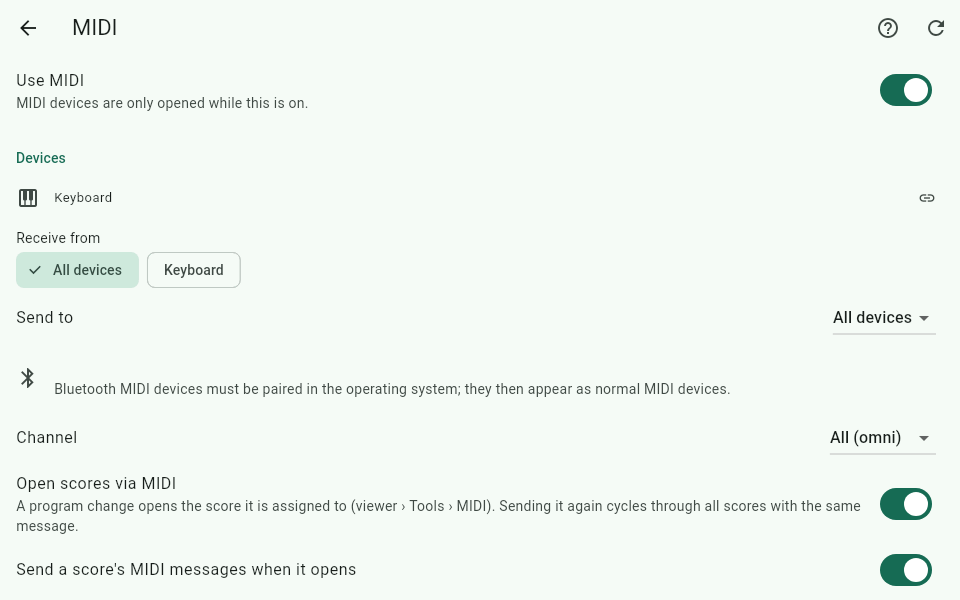
MIDI is completely off at first. Notenpult only accesses MIDI devices once you switch it on.
Here's how:
Connect your MIDI device – with a USB cable (on Android tablets possibly with a USB OTG adapter) or via Bluetooth (see Bluetooth MIDI).
Open Settings › MIDI.
Switch on Use MIDI. In the browser, Chrome or Edge now asks whether Notenpult may control MIDI devices – allow it.
Under Devices you see all devices found. A chain symbol shows whether the device is connected. If you plugged a device in later, tap Search again at the top.
Receive from: keep All devices or tick only the devices Notenpult should listen to.
Send to: choose the device Notenpult sends messages to (e.g. your keyboard), or All devices.
Channel: with All (omni) Notenpult reacts to all 16 MIDI channels. If you choose a channel, messages on other channels are ignored.
Above the device list, Last message shows the most recently received MIDI message. That way you quickly check whether your device gets through at all.
Chosen devices stay in the list even while unplugged. When you plug them in again, Notenpult reconnects them automatically.
Platforms:
Windows and Android: USB MIDI devices are recognised directly.
Browser (Chrome, Edge): MIDI works through the browser's Web MIDI interface.
iPad (Safari): Safari does not support Web MIDI. The MIDI settings then show a note. So on the iPad there is no MIDI in Notenpult (see also Safari).
Learning MIDI actions
With MIDI actions you control the viewer from your MIDI device – just like with a Bluetooth page turner. Classic example: the sustain pedal of your keyboard turns the page.
Here's how (sustain pedal example):
Open Settings › MIDI and scroll to MIDI actions.
Tap Add MIDI action. Notenpult now waits: Play a note, press a pedal or send a program change …
Press the sustain pedal once. Notenpult recognises the message (for the sustain pedal Controller 64) including its channel and adds a new row.
Below it, choose the action, e.g. Next page.
Add Previous page the same way for a second pedal or a key.
You can learn:
Notes: a particular key on the keyboard (e.g. the lowest key, which you don't need in the piece).
Controllers (CC), e.g. sustain, sostenuto or switch pedals and foot switches. The action fires once per press – when you press down, not when you release.
Program changes, e.g. from a MIDI foot controller.
All actions you can put on pedals are available – e.g. Next score / Previous score of the setlist, Performance mode on/off, Metronome start/stop or Audio play/pause (see pedal actions).
Tap the button with the message (e.g. Controller 64 · Channel 1) to learn it again.
The bin deletes a MIDI action.
If nothing arrives within 30 seconds, learning stops. Cancel stops it yourself.
MIDI messages per score
Notenpult can automatically send MIDI messages when a score opens – e.g. the right sound on the keyboard, a preset on the effects unit or a lighting scene.
Here's how:
Open the score in the viewer.
Tap Tools › MIDI. The window MIDI for this score opens.
Under Send when the score opens, tap Add message.
Choose the kind of message and the channel and enter the values: Program change (program 0–127, optionally Bank MSB and Bank LSB), Control change (CC) (controller and value), Note (note and velocity), Bytes / SysEx (bytes in hex notation, e.g. F0 43 10 … F7), Pause (0–10000 ms, e.g. to give a device time to switch) or KORG Pa: SongBook entry (see Arranger keyboards).
Add more messages if needed – they are sent in order.
Send now tries the list out right away.
Tap Save.
The messages are sent as soon as the score appears in the viewer – also when you turn to the next score in a setlist. For this, the option Send a score's MIDI messages when it opens must be on in Settings › MIDI (default).
You can also put MIDI messages on a smart button and send them with a tap on the music.
Loading scores via program change
The other way round, your keyboard or foot controller can open scores in Notenpult: you choose a sound or program on the device, and Notenpult shows the matching music.
Here's how:
Open the score in the viewer and tap Tools › MIDI.
Switch on Open this score via program change.
The easiest way is to tap Learn from device and choose the program on the device. Notenpult takes over channel and program.
Alternatively or in addition, enter the channel (or any channel), Program (0–127) and optionally Bank MSB (CC 0) and Bank LSB (CC 32) by hand. If a bank is entered, the device must also send that bank before the program change.
Tap Save.
Check in Settings › MIDI that Open scores via MIDI is switched on (default).
When this program change arrives, the score opens – from the library or in the viewer. If the score is part of the setlist that is currently open, Notenpult jumps to it within the setlist.
Cycling: several scores may share the same program change. The first message opens the first score (sorted by title), every further identical message switches to the next score with that message. So you can, for example, call up all scores with a particular sound one after the other.
Tempo from MIDI clock
If a drum machine, sequencer, arranger or DAW sets the tempo via MIDI clock, the metronome can follow it.
Open Settings › MIDI.
Switch on Metronome follows MIDI clock.
Start the device. At the top of the MIDI settings you see External MIDI clock: … BPM and running.
In the open score, the metronome then takes tempo, start and stop from the device. Without this switch the tempo is only displayed. Small fluctuations of the clock are smoothed out.
Bluetooth MIDI
Many pedals, controllers and keyboards also send MIDI wirelessly via Bluetooth.
Android – pairing right in Notenpult:
Switch on the Bluetooth MIDI device and Bluetooth on the tablet.
Open Settings › MIDI and switch on Use MIDI.
Under Bluetooth MIDI, tap Search Bluetooth MIDI devices and allow the Bluetooth permission ("Nearby devices" or location, depending on the Android version).
Tap your device in the list. It then appears under Devices.
Paired devices reconnect when MIDI starts. The bin next to a device removes it. If nothing is found, check that the device is switched on and not already connected to another device.
Windows and browser: here you pair Bluetooth MIDI devices in the operating system. Notenpult sees them as soon as Windows (or your system) offers them as a normal MIDI device. On Windows this works with a current Windows 11 or with the manufacturer's driver. There is no search inside Notenpult there.
iPad (Safari): no MIDI, see above.
Arranger keyboards
Notenpult works especially closely with KORG Pa and Yamaha Genos keyboards. First choose your model under Settings › MIDI › Arranger keyboard.
KORG Pa (SongBook)
Notenpult and the keyboard select for each other: when you open a score, the keyboard jumps to the matching SongBook entry – and when you choose an entry on the keyboard, Notenpult opens the matching music.
On the keyboard: under Global › MIDI, assign the Control channel to MIDI IN and MIDI OUT. The MIDI preset "Tablet" uses channel 16 for this.
In Notenpult: choose KORG Pa (SongBook) and set the same Control channel (default 16).
Open a score, tap Tools › MIDI and enter the entry's song number under KORG SongBook: song number (0–9999, the number from the "Num" column in the SongBook).
Save.
For the direction Notenpult → keyboard, Send a score's MIDI messages when it opens must be on; for keyboard → Notenpult, Open scores via MIDI. Notenpult prevents the two devices from switching each other back and forth. If several scores share the same song number, choosing it again on the keyboard cycles through them.
Yamaha Genos / Genos2
When a score opens, Notenpult can press a registration button (1–10) in the bank currently loaded on the keyboard.
On the keyboard: under MIDI › External Controller, assign the functions "Regist 1" to "Regist 10" to notes and note down channel and notes.
In Notenpult: choose Yamaha Genos / Genos2, set the External Controller channel and enter the same note numbers under Regist 1: note to Regist 10: note.
Open a score, tap Tools › MIDI and choose the Yamaha registration button.
Save.
Limits: registration banks and playlist entries cannot be selected via MIDI, and the Genos does not report its selection back. So load the right bank on the keyboard. To open scores from the keyboard, use program changes.
Yamaha PSR-SX600 / SX700 / SX900
For these models there is no MIDI message to select or query registrations, banks or playlist entries. Use MIDI messages per score instead, and loading scores via program change with the program changes the keyboard sends when its voice changes.